Samples Tab
Deep Dive
Track soil and water samples with automatic stratigraphy linking, laboratory test assignments, and Excel export for lab submission forms.
Interface Overview
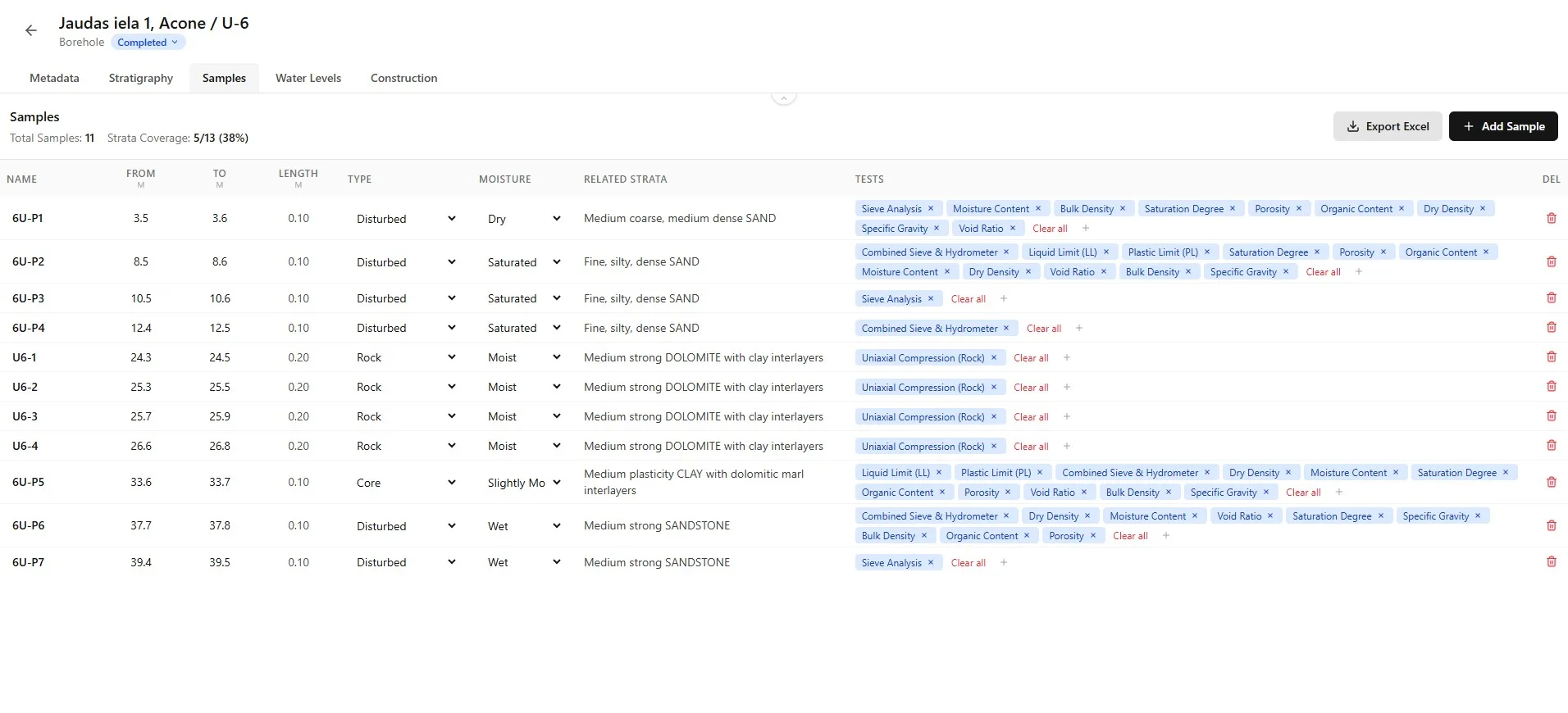
The Samples tab provides complete sample tracking from field collection to laboratory testing:
- Sample count, strata coverage statistics, and action buttons (Export Excel, Add Sample).
- Quick entry form with name, depths, type, and moisture fields.
- Editable grid showing all samples with inline editing for all fields.
- Automatic association with stratigraphy layers based on sample depth.
SPT samples
SPT samples are managed inside the SPT object — this tab focuses on disturbed and undisturbed samples.Adding Samples
Create new samples with the quick entry form:
Click "+ Add Sample" button in the header.

Enter sample name (e.g., S-1, S-2, or project-specific naming).

Set depth range (From and To in meters). Length is calculated automatically.
Select sample type and moisture level (optional).
Click "Add" to create the sample. It will automatically link to the matching stratigraphy layer.
Sample Types
Borebase supports standard geotechnical sample types:
| Code | Type | Description |
|---|---|---|
| Bulk samples for classification and index testing | ||
| Thin-wall tube samples preserving soil structure | ||
| Sample recovered from SPT split-spoon sampler | ||
| Water sample for chemical analysis | ||
| Groundwater sample from well or borehole | ||
| Rock core sample from rotary drilling |
Moisture Levels
Record field moisture observations for each sample:
| Level | Description |
|---|---|
| No visible moisture, dusty when handled | |
| Dark color, no free water | |
| Damp to touch, will leave moisture on hands | |
| Water visible, soil easily moldable | |
| Free water present, flows when tilted | |
| Below water table, fully saturated |
Automatic Stratigraphy Linking
Samples are automatically linked to stratigraphy layers based on depth:
- When you create a sample, the system finds the stratigraphy layer containing the sample's depth_from.
- The Related Strata column shows the layer name, soil type, or rock type.
- The header shows strata coverage: how many layers have at least one sample.
- Warning icons appear when a sample depth doesn't match any stratigraphy layer.
Each sample can be linked to a stratigraphy layer for context.

The coverage chart shows where samples are concentrated by depth.

Error Types
| Error | Meaning | Solution |
|---|---|---|
| Sample depth is less than 0 | Correct the depth value | |
| Sample depth is deeper than borehole | Update borehole depth or sample depth | |
| No stratigraphy has been entered | Add layers in the Strata tab | |
| Depth falls in a gap between layers | Extend stratigraphy to cover this depth |
Assigning Laboratory Tests
Add laboratory tests to track what analysis should be performed on each sample:
In the Tests column, click the small + icon to open the test selector.

Type to search tests by name, code, or category. Or expand categories to browse available tests.

Expand a lab test category to see all available tests.

Click individual tests to add them. Use "+ All" to add all tests from a category at once.

Use Add All to attach every test in a category to the selected sample.

View added tests in the sample's Lab tests list.

Test Categories
- Grain size, Atterberg limits, natural moisture content
- Triaxial (UU, CU, CD), unconfined compression, direct shear
- Oedometer, consolidation parameters
- Falling head, constant head permeability tests
- Standard Proctor, modified Proctor, CBR
- pH, sulfate content, organic matter
Inline Editing
Edit any sample field directly in the table:
- Click any cell to start editing.
- Press Enter or click outside to save changes.
- Press Escape to cancel and restore the original value.
- Type and Moisture columns use dropdown selectors.
- Changes are saved automatically - no Save button needed.

Excel Export for Lab Submission
Export your sample list to Excel for laboratory submission:
Click "Export Excel" button in the header.

Exports include the sample list, depths, classifications, and any attached lab data.
- The export includes professional formatting with styled headers.
- Header section shows object name, project, total samples, and generation date.
- All columns are included: Name, Depths, Length, Type, Moisture, Related Strata, Tests.
Practical Example
Use the Excel export as a lab submission form. Send it to the laboratory so they know exactly which tests to run on each sample. The tests column lists all requested analyses.Strata Coverage Statistics
The header shows how many stratigraphy layers have at least one sample:
- Format: X/Y (Z%) where X is covered layers, Y is total layers, Z is percentage.
- Goal: 100% coverage ensures every soil layer has been sampled for testing.
- Important for quality assurance - identifies gaps in sampling program.
Geotechnical Note
Good practice is to sample every distinct stratigraphy layer. The strata coverage indicator helps ensure no layers are missed during field sampling.
Best Practices
Field Work
- Enter samples as you collect them in the field for accurate depth records.
- Record moisture level immediately - it changes during storage.
- Use consistent sample naming across the project.
Laboratory Testing
- Add tests before sending samples to the lab.
- Use the Excel export as your lab submission form.
- Consider sample type when assigning tests (undisturbed for strength tests).
Quality Control
- Check strata coverage regularly - aim for 100%.
- Resolve any warning icons (depth mismatches) promptly.
- Review sample list before export to ensure completeness.